Create a project, choose a completeness check model, and upload your drawing set to run an AI PreCheck from start to finish.
4. Create a new project
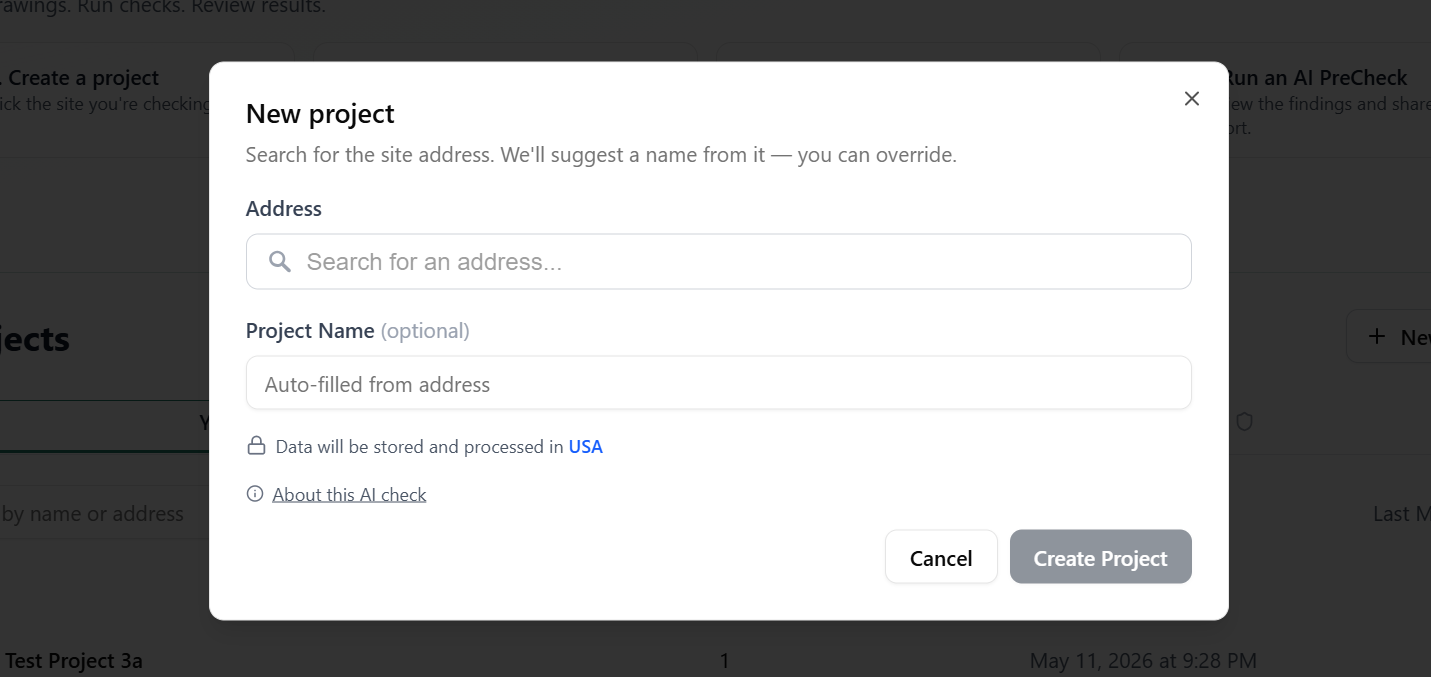
Section titled “4. Create a new project”Begin by typing the project’s address. Matching addresses populate beneath the field – click the correct one to lock it in. The project can then be given a name (optional) then click Create Project.
5. Start an AI PreCheck
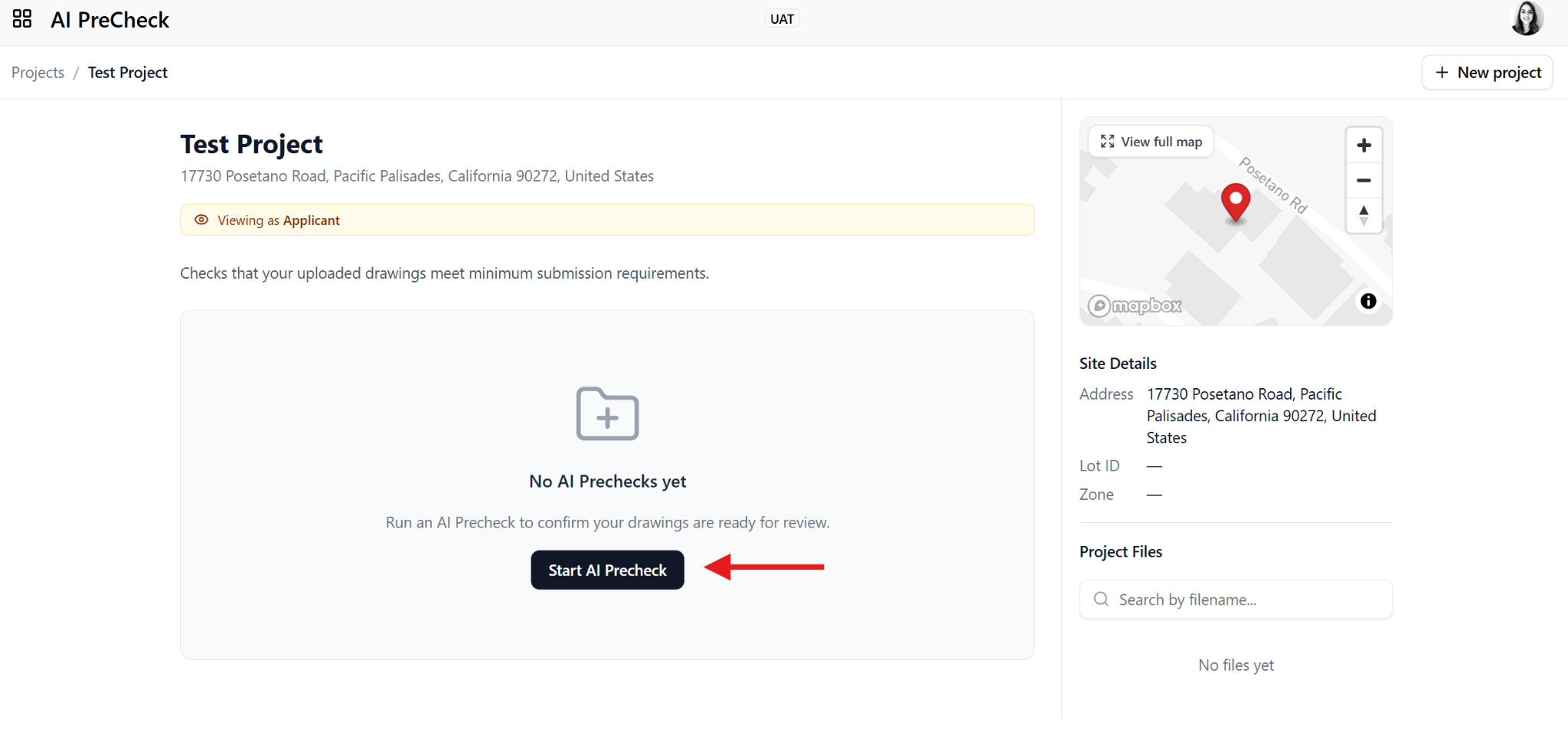
Section titled “5. Start an AI PreCheck”On the new project page, click Start AI PreCheck to launch the report wizard. This is where you will pick the check model and upload the drawing set you want assessed.
6. Choose a Completeness Check model
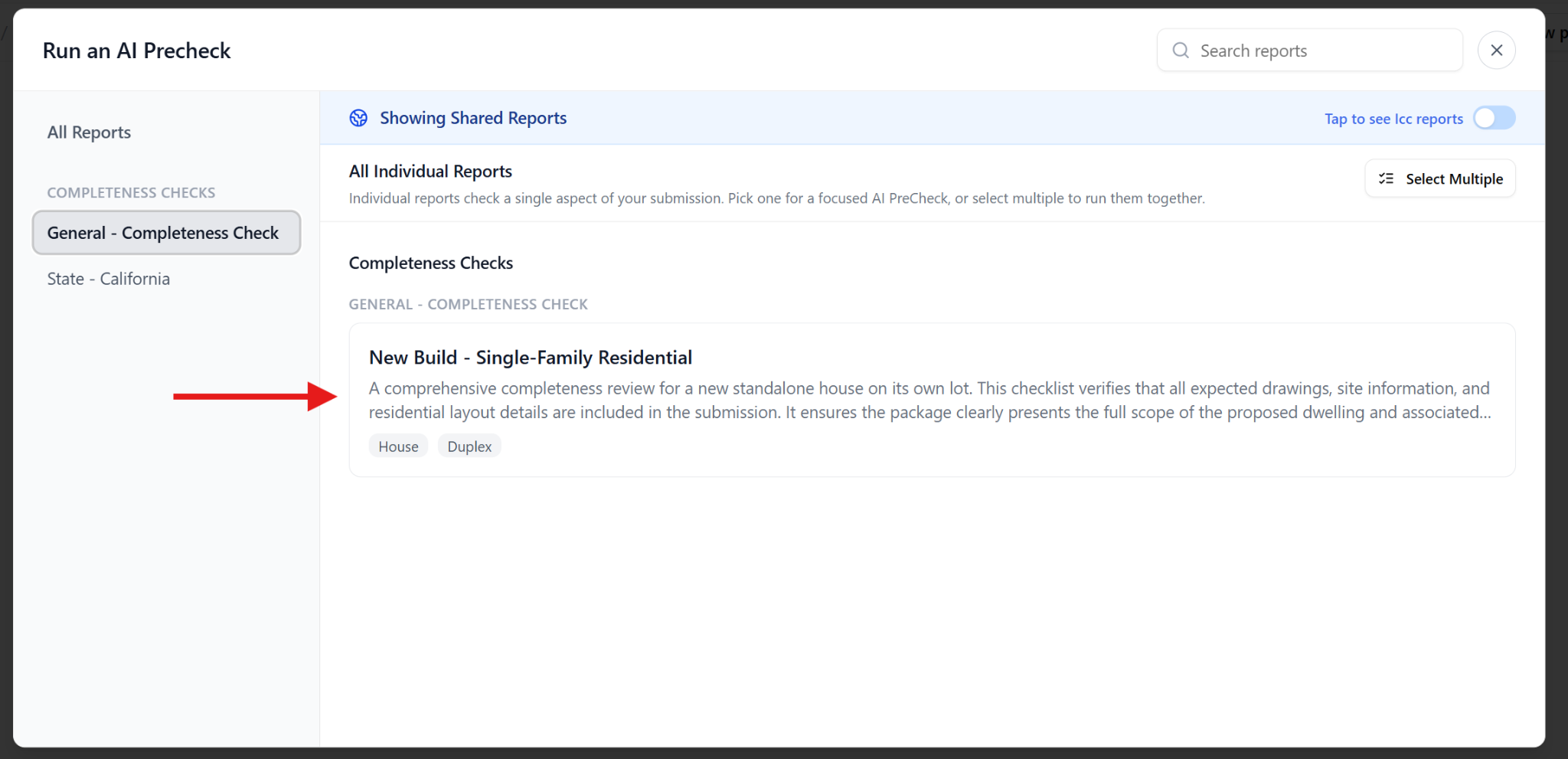
Section titled “6. Choose a Completeness Check model”Pick the completeness check that matches your submission type (for example, New Build – Single-Family Residential). The right-hand panel shows the model description and the full list of items the AI will look for on the drawings.
7. Upload the drawing set
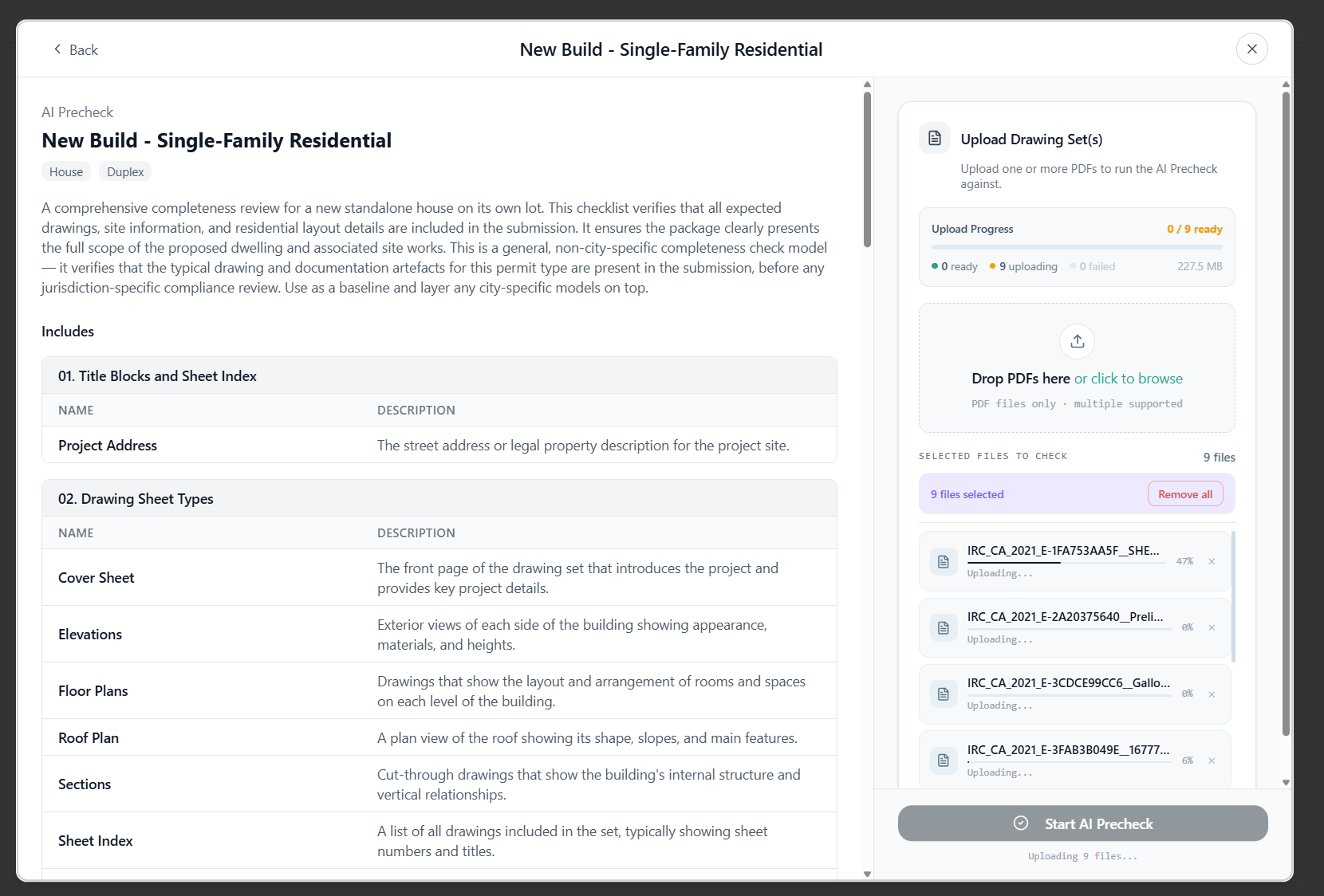
Section titled “7. Upload the drawing set”On the right side of the wizard, drag and drop your PDF into the upload zone or click click to browse to select files. You can upload several PDFs at once if your submission is split across multiple files.
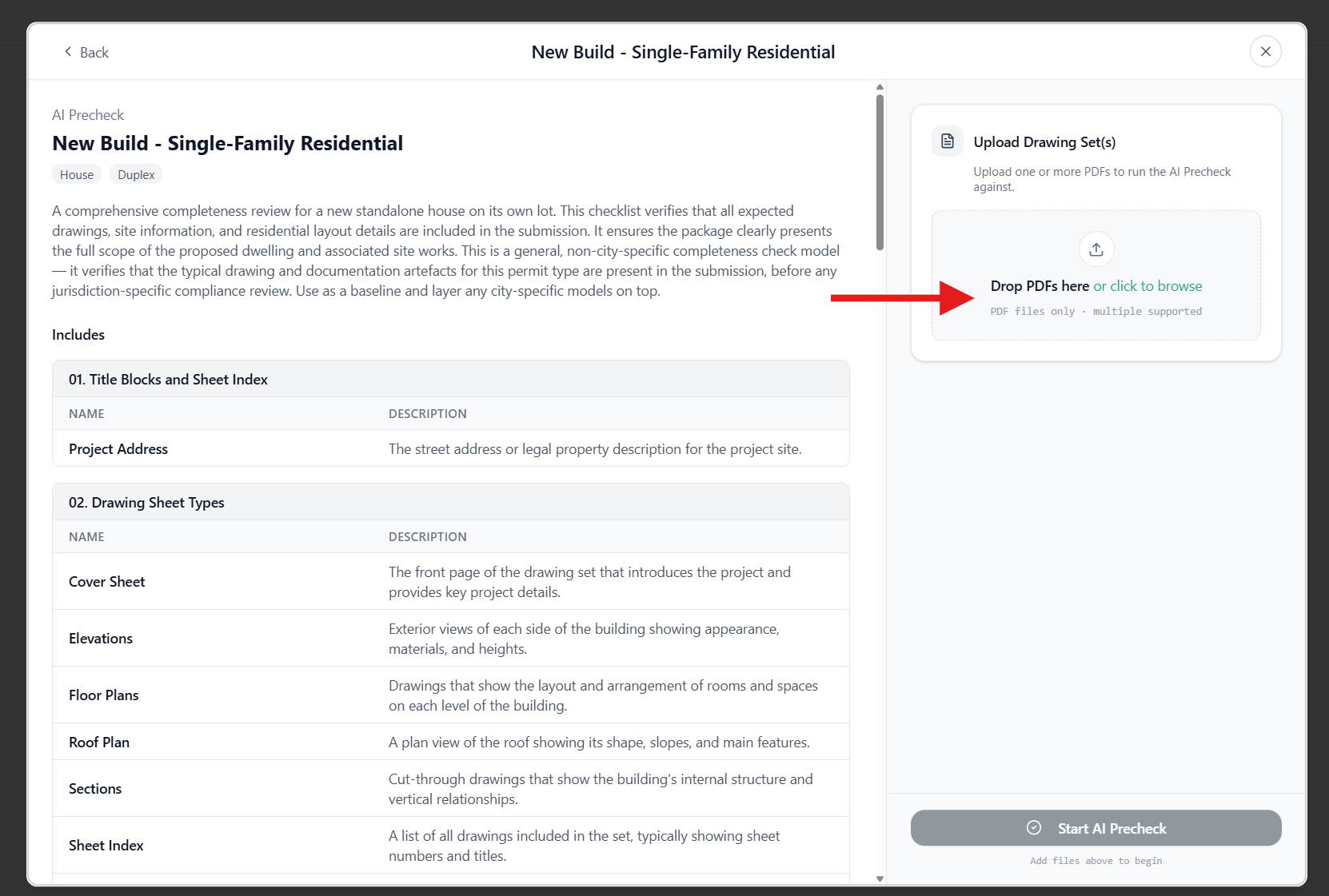
Each file is scanned for viruses and validated as a PDF drawing set before continuing. Press the “Start AI Precheck” button once all files have been uploaded.
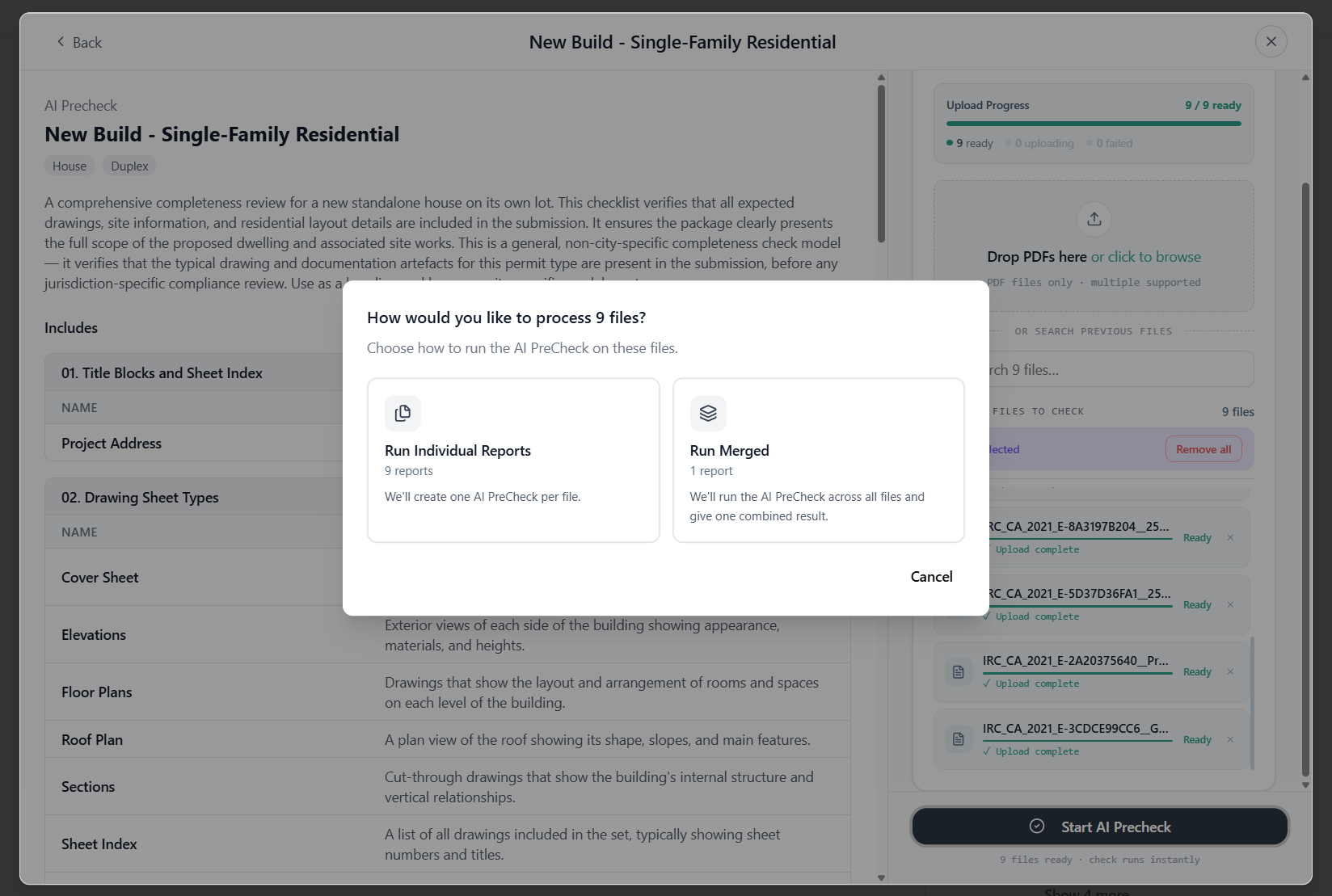
8. Choosing How to Process Uploads
Section titled “8. Choosing How to Process Uploads”Run Individual Reports - Use this when uploading multiple separate projects.
Section titled “Run Individual Reports - Use this when uploading multiple separate projects.”- Example - Upload 5 projects → receive 5 separate reports.
Run Merged - Use this when a single submission contains multiple PDFs.
Section titled “Run Merged - Use this when a single submission contains multiple PDFs.”- Example: One project may include application forms, drawing sets and engineering drawings.
This allows you to either test multiple submissions at once or process one complete submission as a single report.
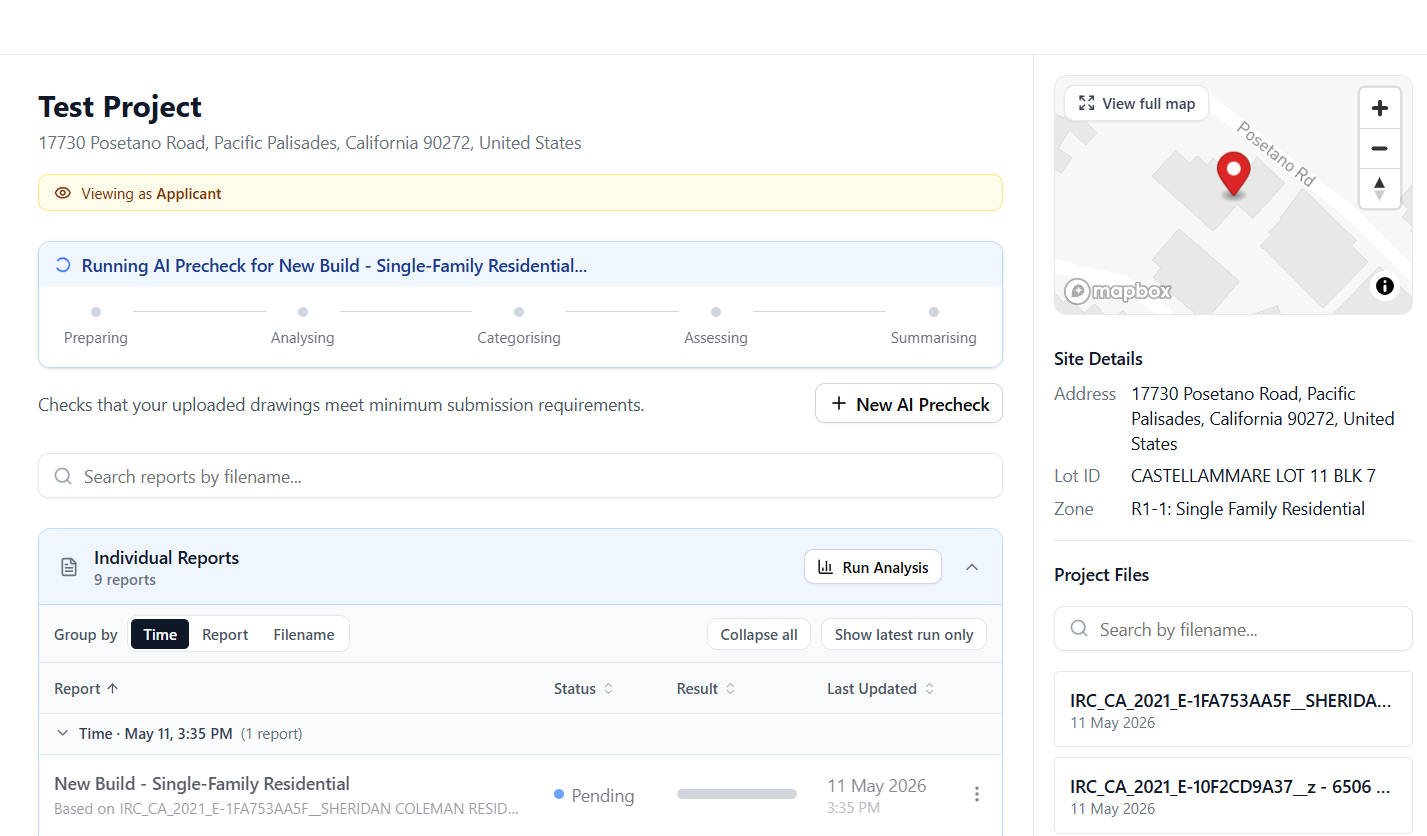
You are returned to the project page where the report appears with a Pending status.
Progress is shown across the top – Preparing, Analysing, Categorising, Assessing, Summarising. Most reports complete in around three minutes, depending on the size of the PDF.
9. Review the completed result
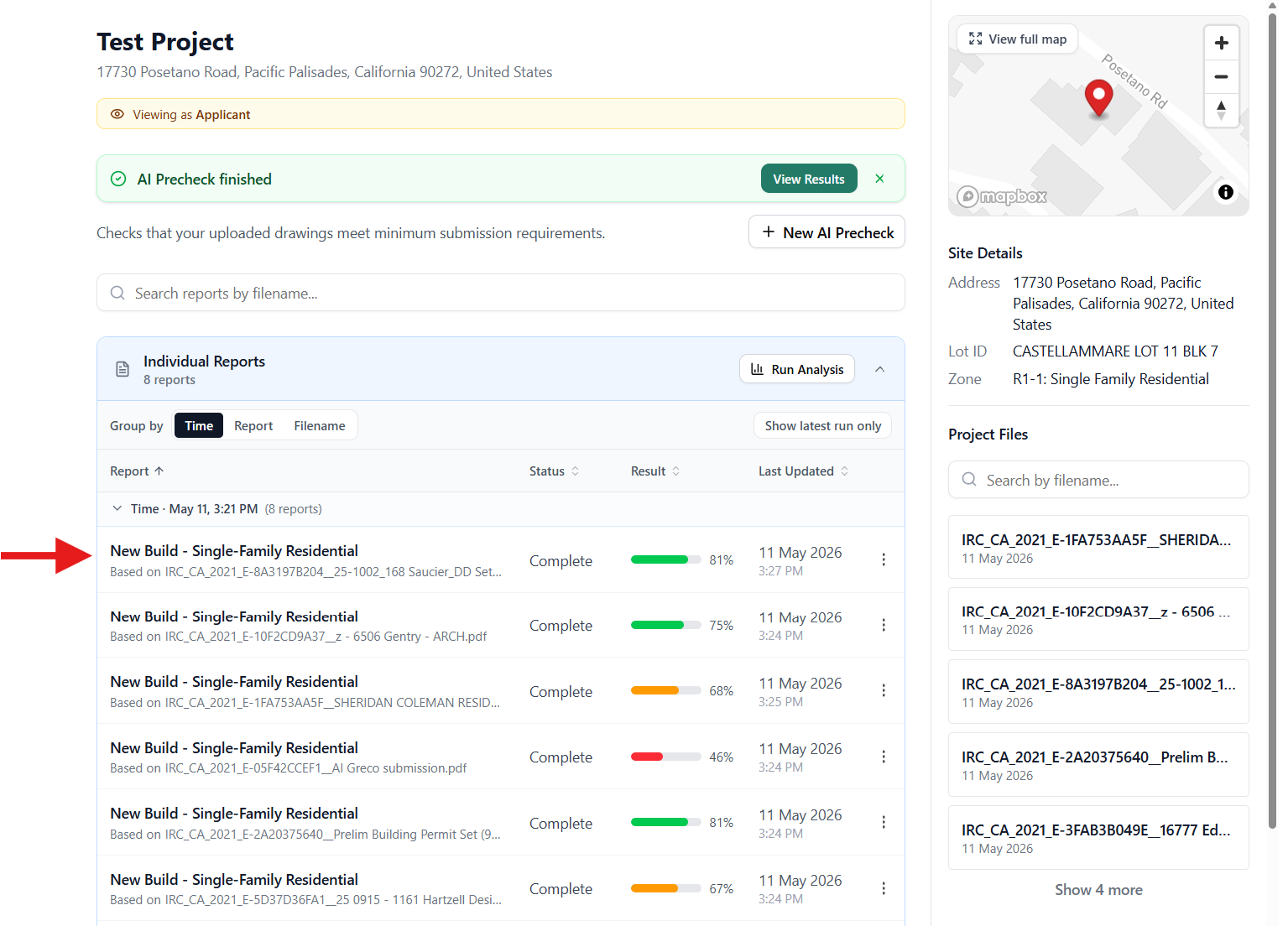
Section titled “9. Review the completed result”When the run finishes the status changes to Complete and an overall readiness score is shown.
A green bar indicates a strong submission, orange means review is required, and red signals significant gaps.
Click the report row to open the AI PreCheck viewer.