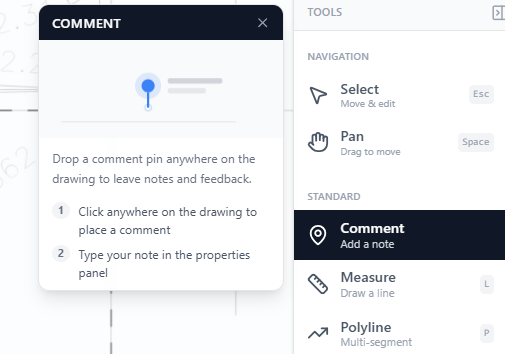
Navigate the drawing viewer, set the page scale, and use the annotation and measurement tools to mark up plans.
14. Navigating the Drawing Viewer
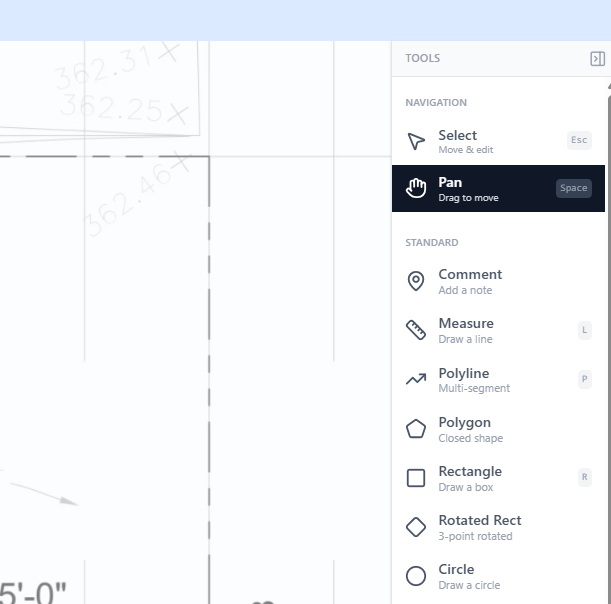
Section titled “14. Navigating the Drawing Viewer”Use the navigation tools on the right side of the viewer to move around the plans.
-
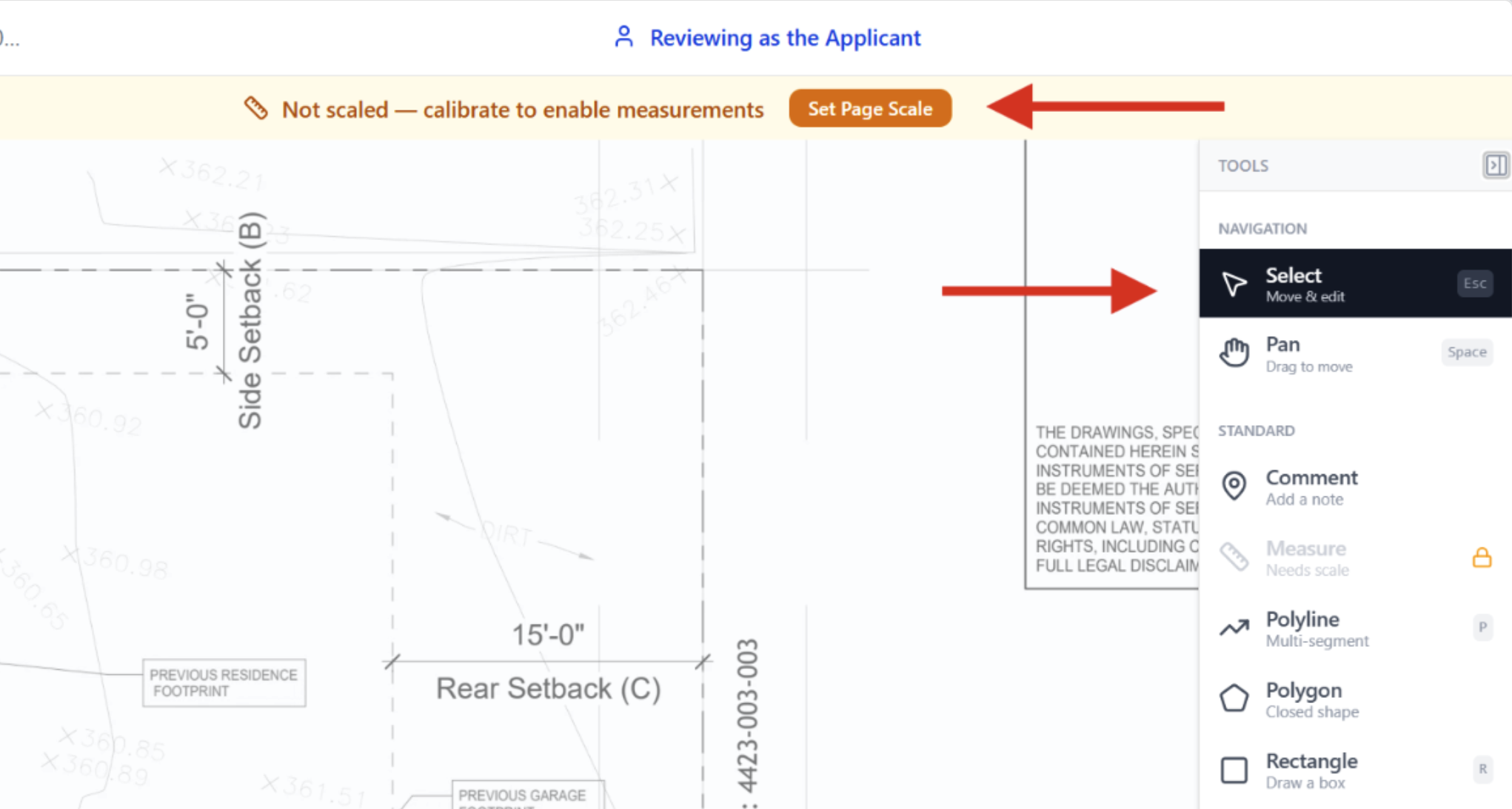
Select lets you click, move, and edit annotations or markups.
-
Pan allows you to drag and move around the page to review different areas of the drawing.
You can switch between these tools at any time while reviewing the plans.
15. Annotate and measure on the drawings
Section titled “15. Annotate and measure on the drawings”To use the drawing and annotation tools, the page must first be scaled. If the page is not calibrated, measurement-based tools will stay locked.
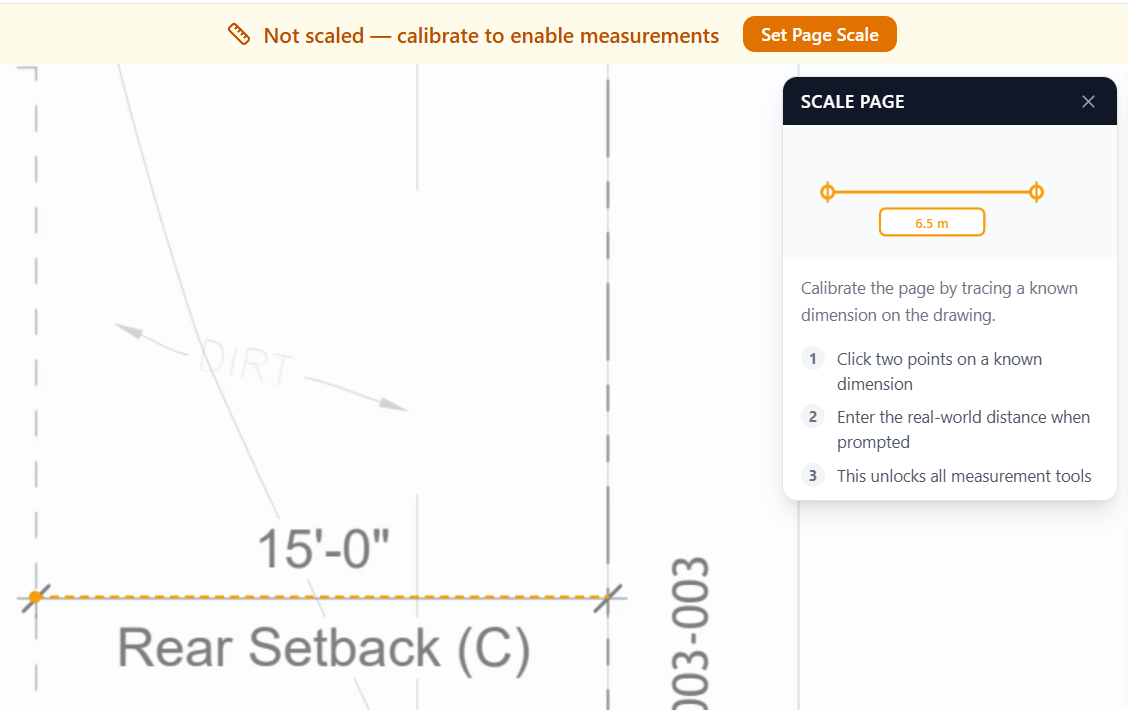
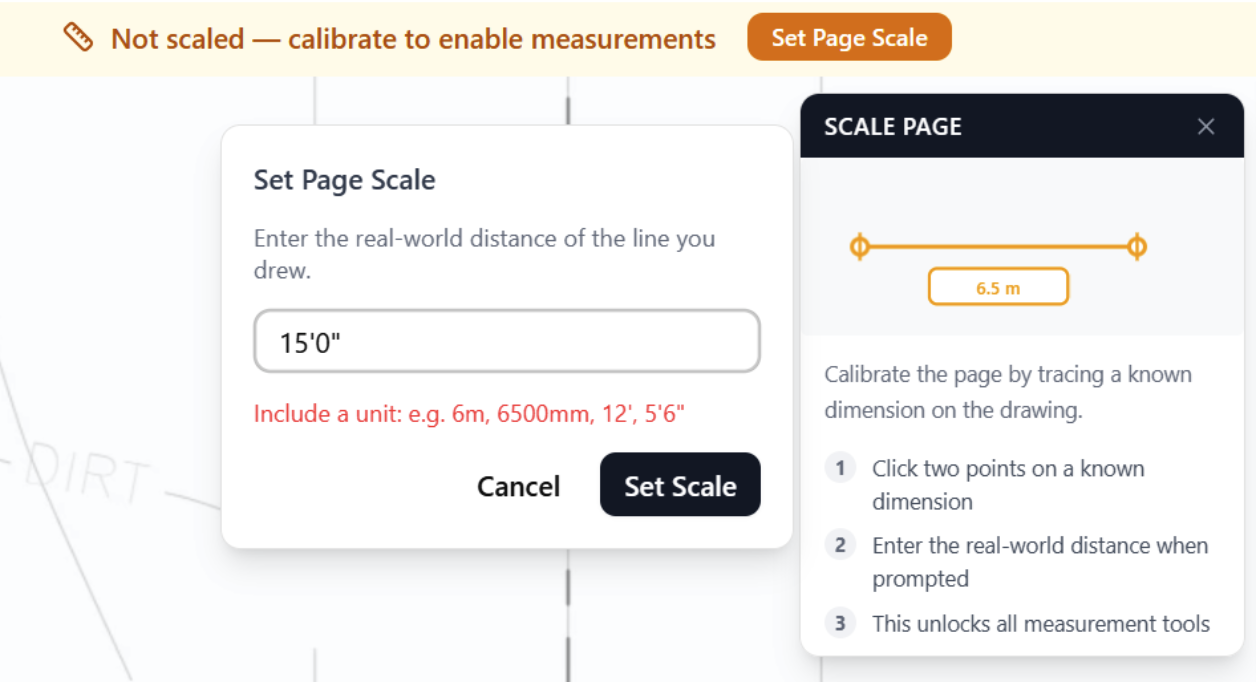
Click Set Page Scale at the top of the viewer and follow the prompts to calibrate the drawing using a known dimension. Once the scale is set, the tools will become available.
The drawing and annotation toolbar is located on the right side of the screen and includes tools for
- Comments and notes
- Measurements
- Shapes and markups
- Drawing annotations
This allows applicants and reviewers to add additional information directly onto the plans during review.
Setting and Applying Page Scale
Section titled “Setting and Applying Page Scale”Before using measurement and advanced annotation tools, the drawing must be calibrated with a page scale. This ensures measurements and markups are accurate.
Click Set Page Scale at the top of the viewer to open the scaling options. You can set the scale in two ways:
-
By Page Size — Select the drawing paper size and scale ratio used in the plans.
-
By Measurement — Calibrate the drawing manually using a known dimension on the page.
Choose either Metric or Imperial, then select the appropriate page size and scale. Click Apply Scale to save.
Once the scale is applied, measurement and advanced drawing tools in the toolbar on the right side of the screen will become available.
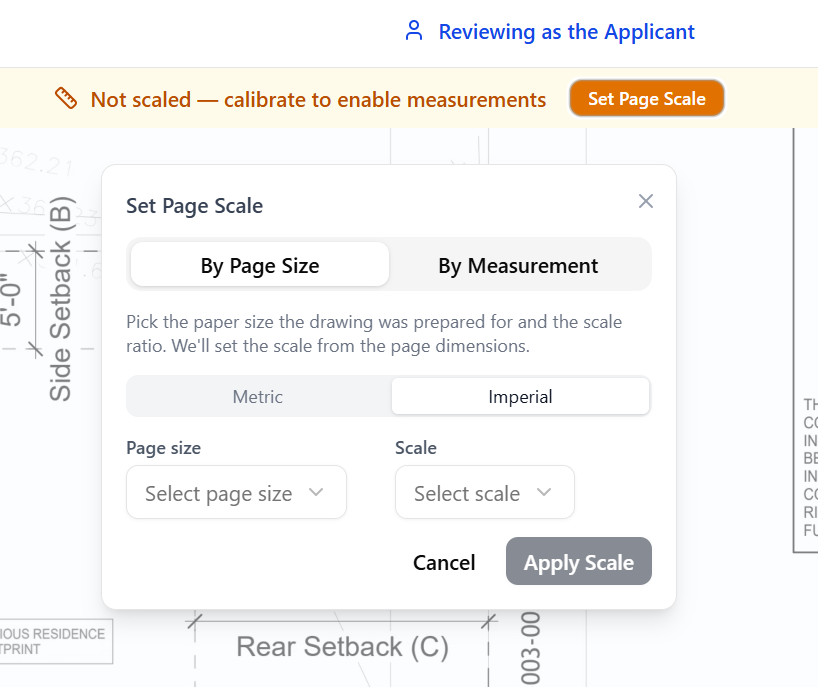
Follow the prompts and type in a scale.
16. Using the Drawing Tools
Section titled “16. Using the Drawing Tools”The tools on the right side of the viewer allow applicants and reviewers to add comments, measurements, shapes, and planning overlays directly onto the plans.
Standard tools can be used for notes, measurements, and markups, while advanced tools support planning checks such as setbacks, building envelopes, height checks, and area calculations.
Some advanced tools are customised for specific cities or jurisdictions, so available tools may vary depending on the project location. Quantity tools can also calculate and summarise information such as areas, counts, cut / fill and summary table.
Click on a tool and follow the in-app instructions to use the tool.