Explore the AI findings in the viewer, add your own assessment or comments, and review the pages behind each check.
10. Explore the results in the viewer
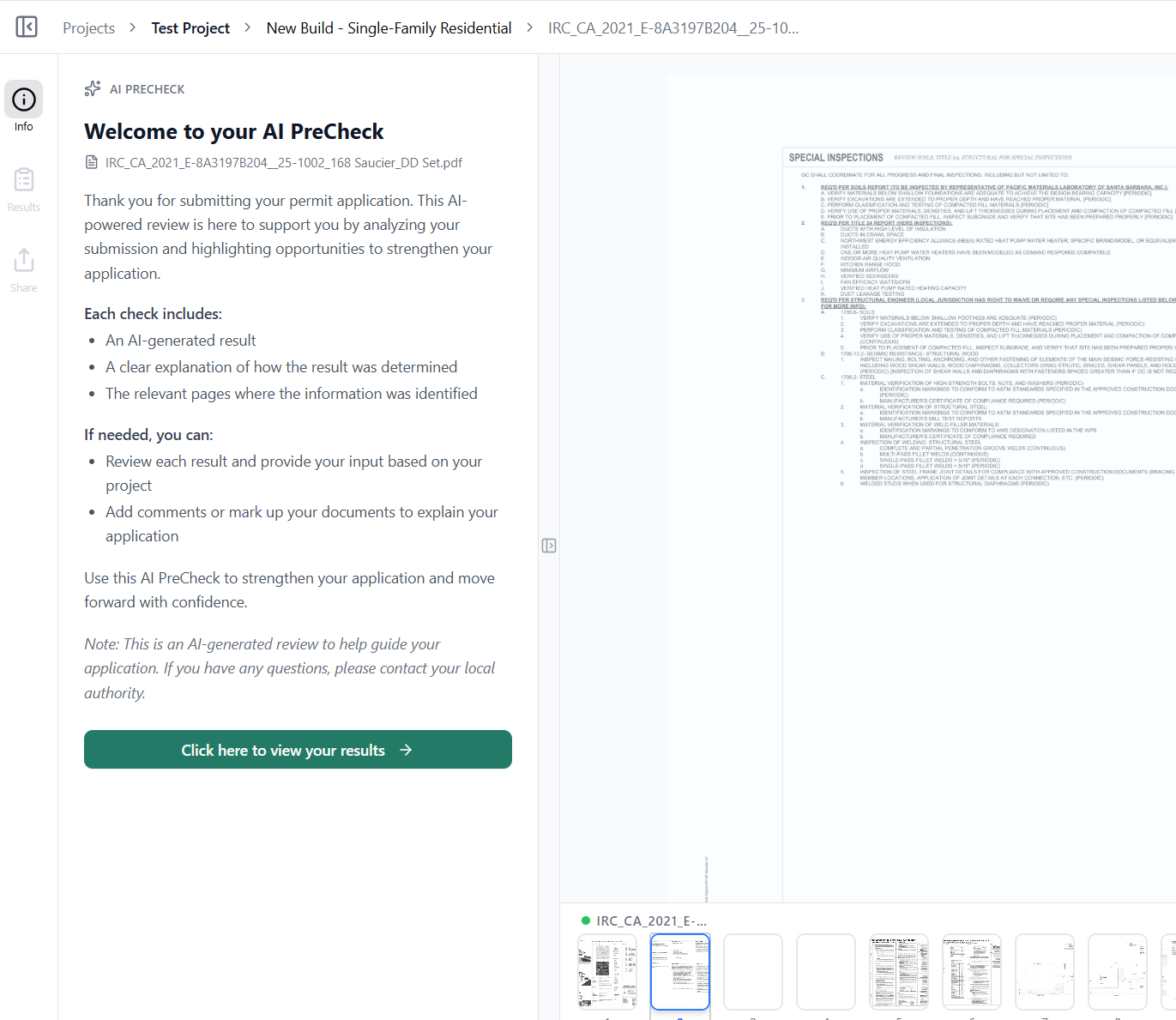
Section titled “10. Explore the results in the viewer”The viewer puts your drawings on the right and the AI results on the left. Click the button “Click here to view your results” to see more detailed results.
Understanding AI Result vs Applicant Result
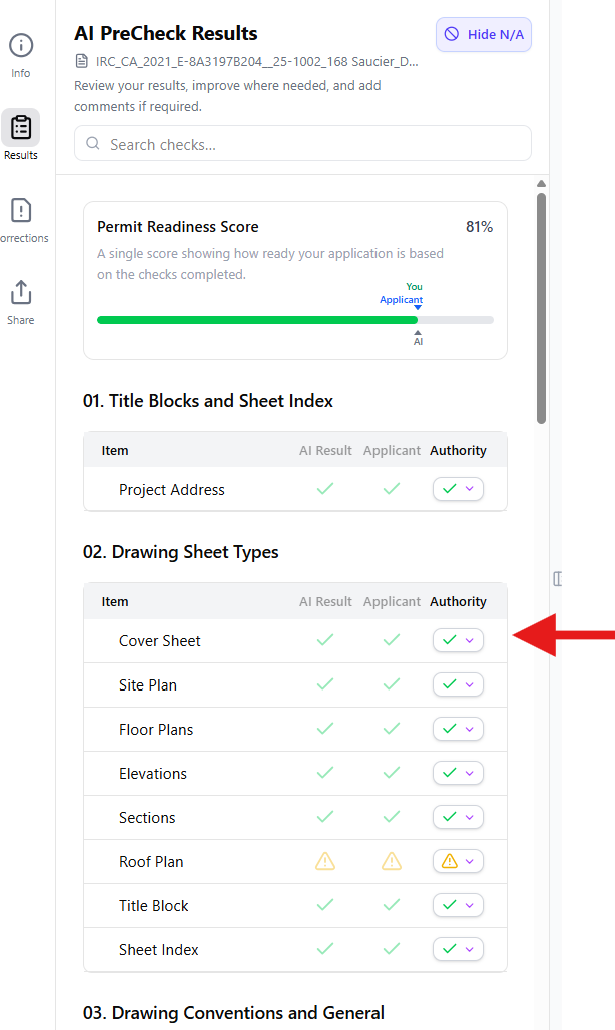
Section titled “Understanding AI Result vs Applicant Result”The AI PreCheck compares what the AI detected against applicant and authority reviews.
- AI Result — What the AI identified in the uploaded files
- Applicant Result — Allows applicants to record their own assessment alongside the AI result
- Authority Result — Allows city reviewers to confirm checks and flag corrections or missing information
Flagged items can be compiled in the Corrections tab to generate a corrections list or formal corrections letter.
Click any check to open the evaluated page and view the AI’s reasoning.
11. Provide Your Assessment or Add a Comment
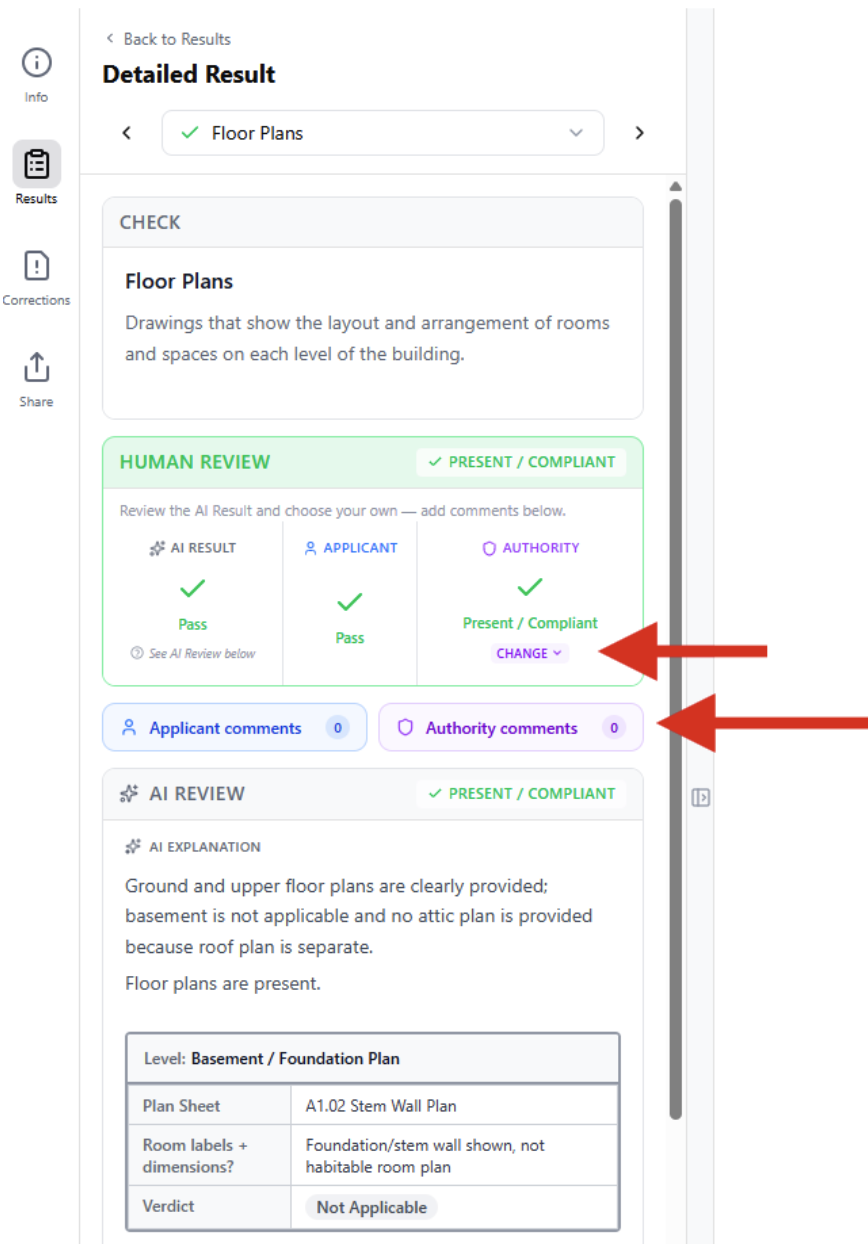
Section titled “11. Provide Your Assessment or Add a Comment”If self-assess is enabled, applicants can review any AI check and record their own assessment alongside it — the AI result is not changed.
-
Click Change to select your assessment outcome (for example, mark a check as Present / Compliant).
-
Add a comment to explain or support your assessment.
-
The AI Result and Applicant Result are both saved and visible to reviewers.
Add a Comment
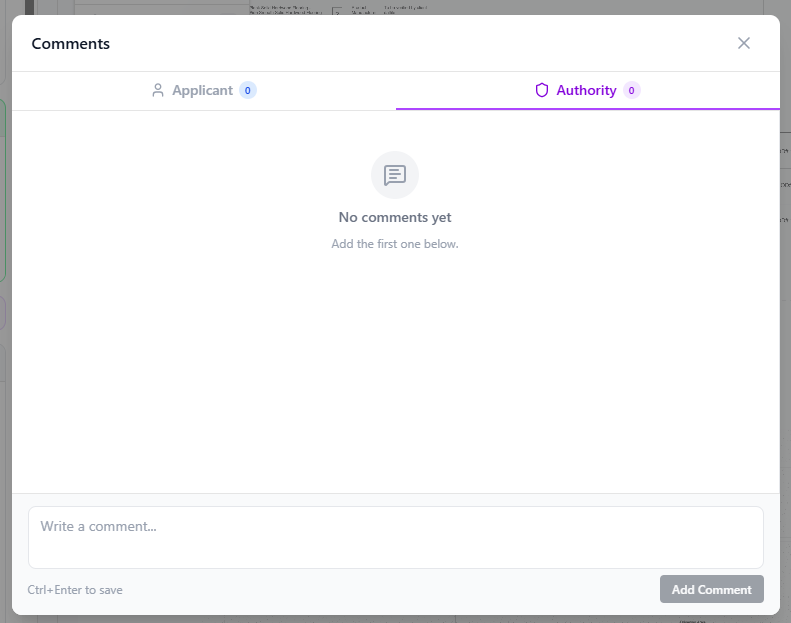
Section titled “Add a Comment”Applicants can add comments to provide clarification or supporting information for a check.
- Open the Comments panel.
- Enter your note in the comment box.
- Click Add Comment or press Ctrl + Enter to save.
Comments are stored with the check and can be reviewed alongside the AI and applicant results.
12. Understanding the results
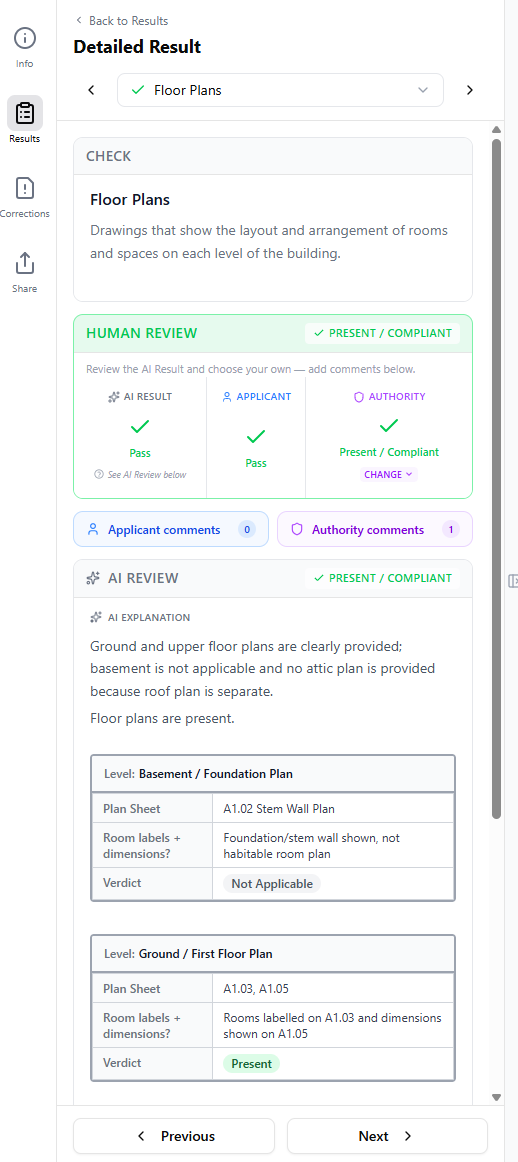
Section titled “12. Understanding the results”The Detailed Result view shows the AI’s evaluation for each check, including:
-
The AI explanation
-
Supporting notes and sheet references
-
The AI, Applicant, and Authority results
-
Any applicant or authority comments and assessments
Use the Previous and Next buttons at the bottom of the panel to move between checks.
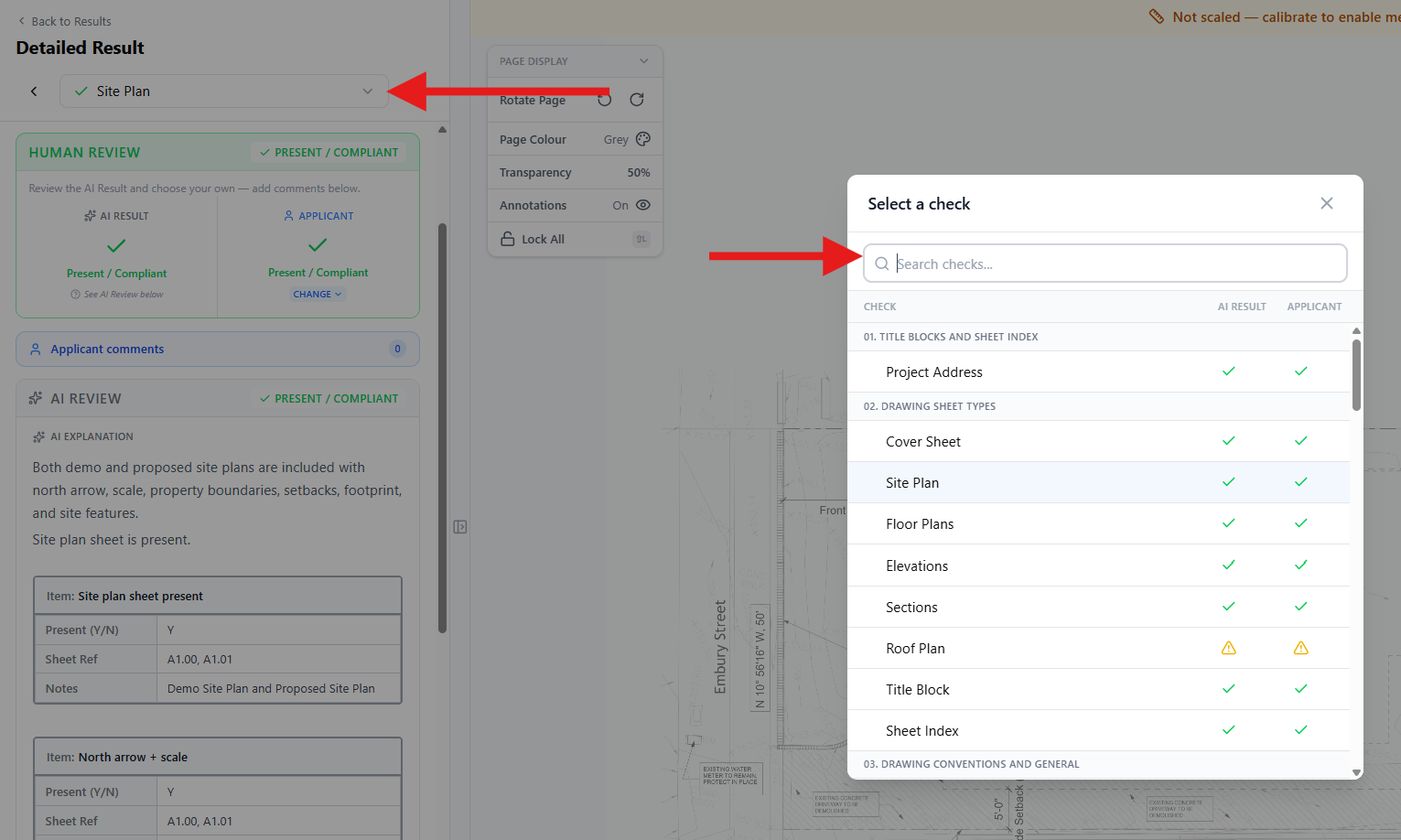
You can also click the check name at the top (for example, Site Plan) to open the full list of checks. From here you can:
-
Search for a specific check
-
Jump directly to another section
-
View AI and Applicant results for all checks in one place
This makes it easy to navigate large submissions and quickly review specific items.
13. Reviewing Relevant Pages
Section titled “13. Reviewing Relevant Pages”The AI only shows the pages used to evaluate the selected check, making it easier to review the relevant information quickly. The AI explanation and sheet references help explain why the result was given.
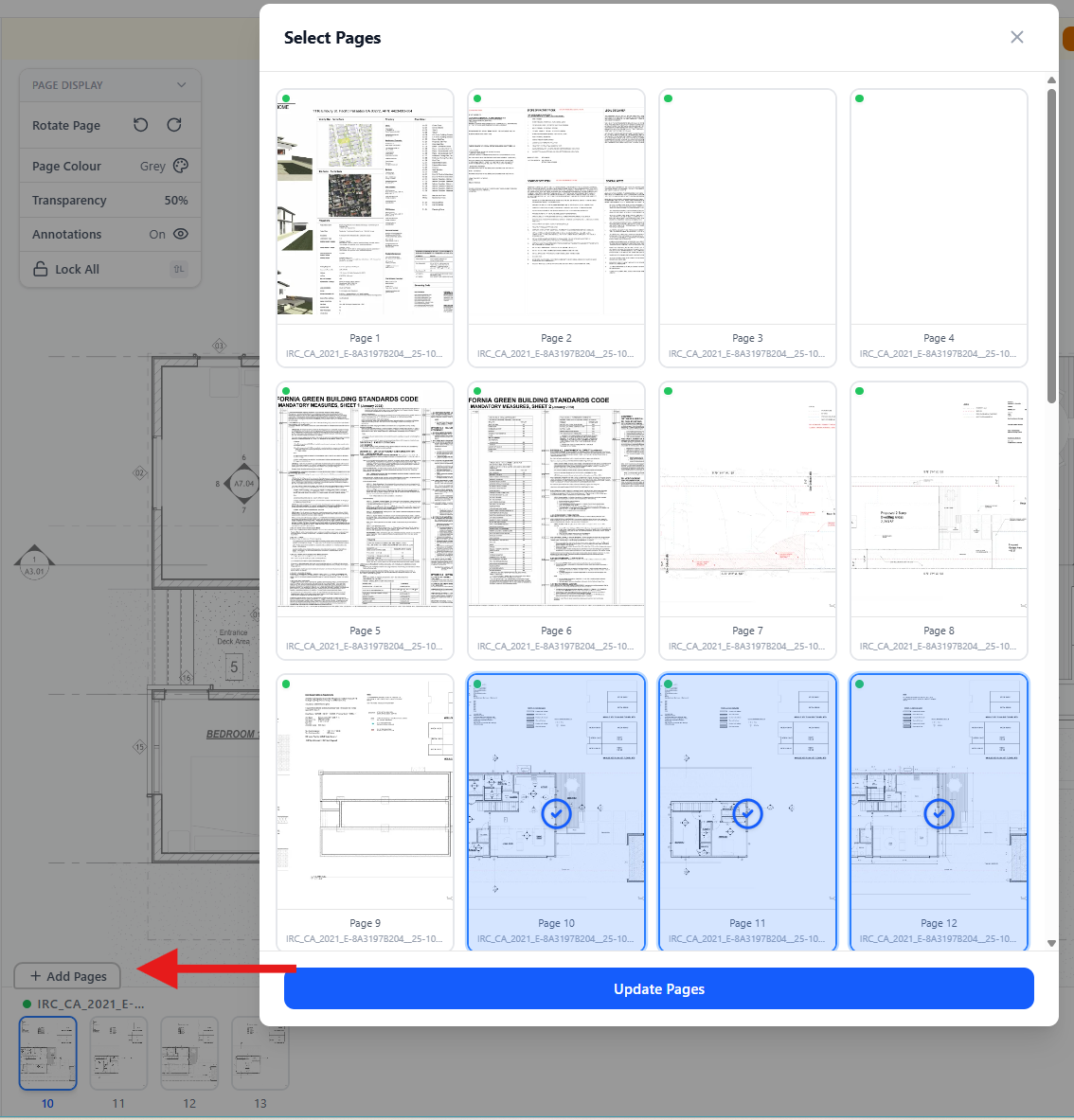
If you want to review additional information, click Add Pages, select more pages from the document viewer, then click Update Pages. The new pages will be added to the review panel for further assessment.